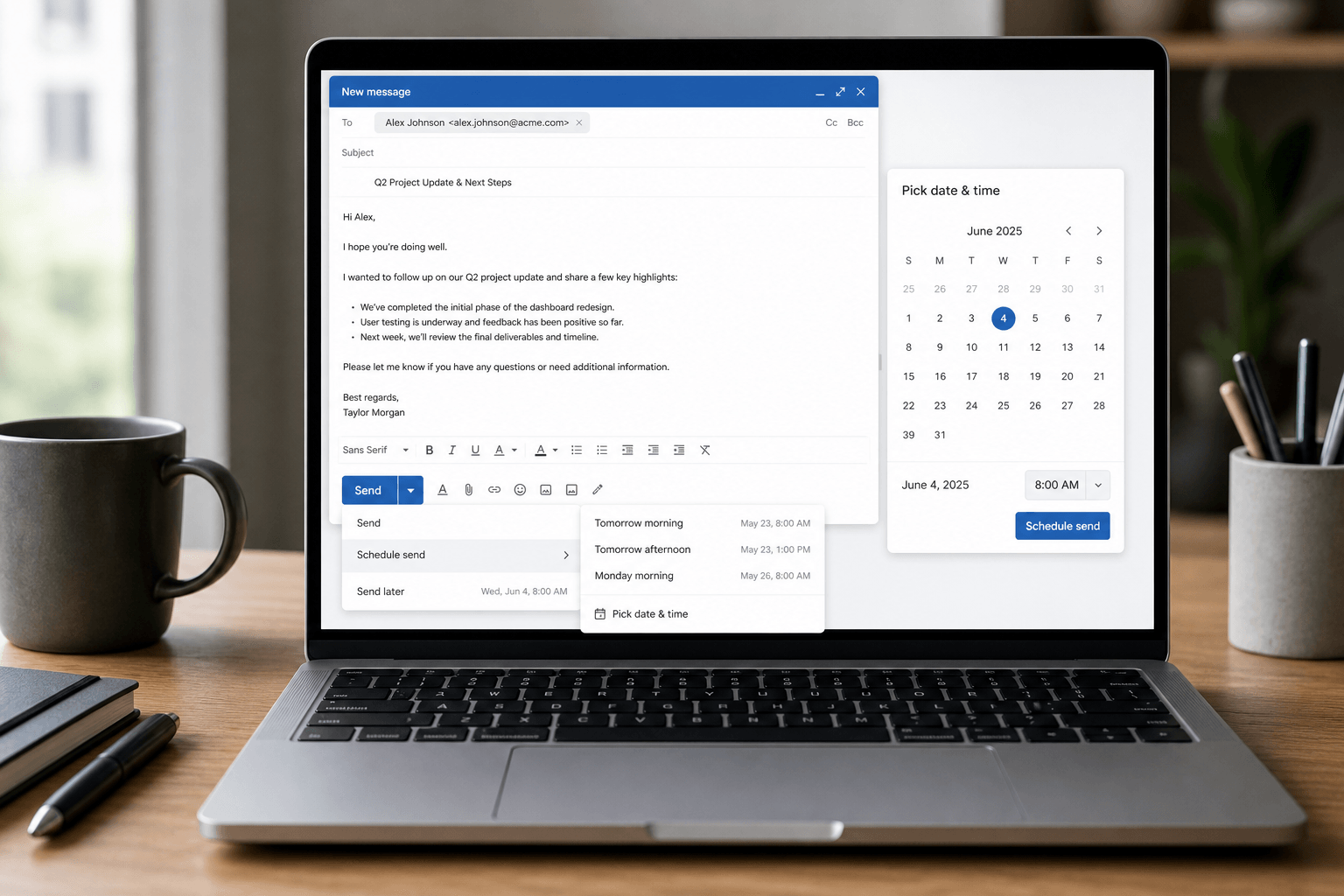
 There's a difference between writing an email at midnight and sending it at midnight. One signals urgency or poor boundaries. The other is evidence you're thoughtful about timing.
Scheduling send isn't procrastination — it's strategy. You draft when you're sharp; you deliver when your recipient is available and receptive. Here's how to do it in Gmail and Outlook, with practical rules so scheduled sends actually work.
Gmail: Schedule send
On web: Compose your email as usual. Instead of clicking "Send," click the small dropdown arrow next to Send → Schedule send. Pick one of the suggested times or choose Pick date & time. Gmail queues the message until that moment.
On mobile (iOS/Android): Tap Send — Gmail prompts you to Schedule send before the message goes out. Choose your slot.
To edit or cancel: Open your Scheduled folder (left sidebar under Drafts or via More). Open the message, reschedule, or send immediately.
Outlook on the web
Compose your message. Next to Send, click Send later (or the caret beside Send, depending on your UI version). Choose a suggested time or pick a custom date/time. Outlook holds the message until delivery.
You can review scheduled mail in your Drafts folder — scheduled items appear there with a note indicating they're queued.
Outlook desktop (new Outlook / Classic)
In new Outlook for Windows or Mac, compose your email and use Send later from the Send menu — similar to the web experience.
In classic Outlook, options vary by version and Exchange setup; many organizations allow delayed delivery via Options → Delay Delivery (Do not deliver before...). If you don't see it, your IT policy may restrict scheduling — use Outlook on the web instead.
Simple timing rules that work
Avoid weekends unless culture expects it. Saturday sends often read as urgent or inconsiderate unless you're in industries where that's normal.
Tuesday–Thursday mornings still win for external email. Not because Monday is "bad," but because Monday inboxes are noisy — your message competes with weekend backlog.
Don't schedule passive-aggressive sends. If you're angry, draft — don't queue. Sleep on it. The schedule button isn't a cooling-off substitute.
Match time zones. If your recipient is in London and you're in Mumbai, "9am their time" beats "9am your time."
Faraday
Faraday already handles Gmail and Outlook with promptless organization, powerful search (including full operator support), and an inbox built around what matters in each message. Schedule send is coming soon — so you'll be able to draft on your schedule and deliver at the right moment without jumping back into Gmail or Outlook for that step.
Scheduling can't fix a weak email
Perfect timing won't rescue a vague subject line, a buried ask, or an endless thread nobody wants to reopen. The clearest emails win regardless of send time — which is why tools like Faraday matter: when every message is automatically categorized and summarized, recipients actually process what you sent instead of skimming past it in a panic inbox.
Schedule wisely. Write clearly. Let the send time support the substance.