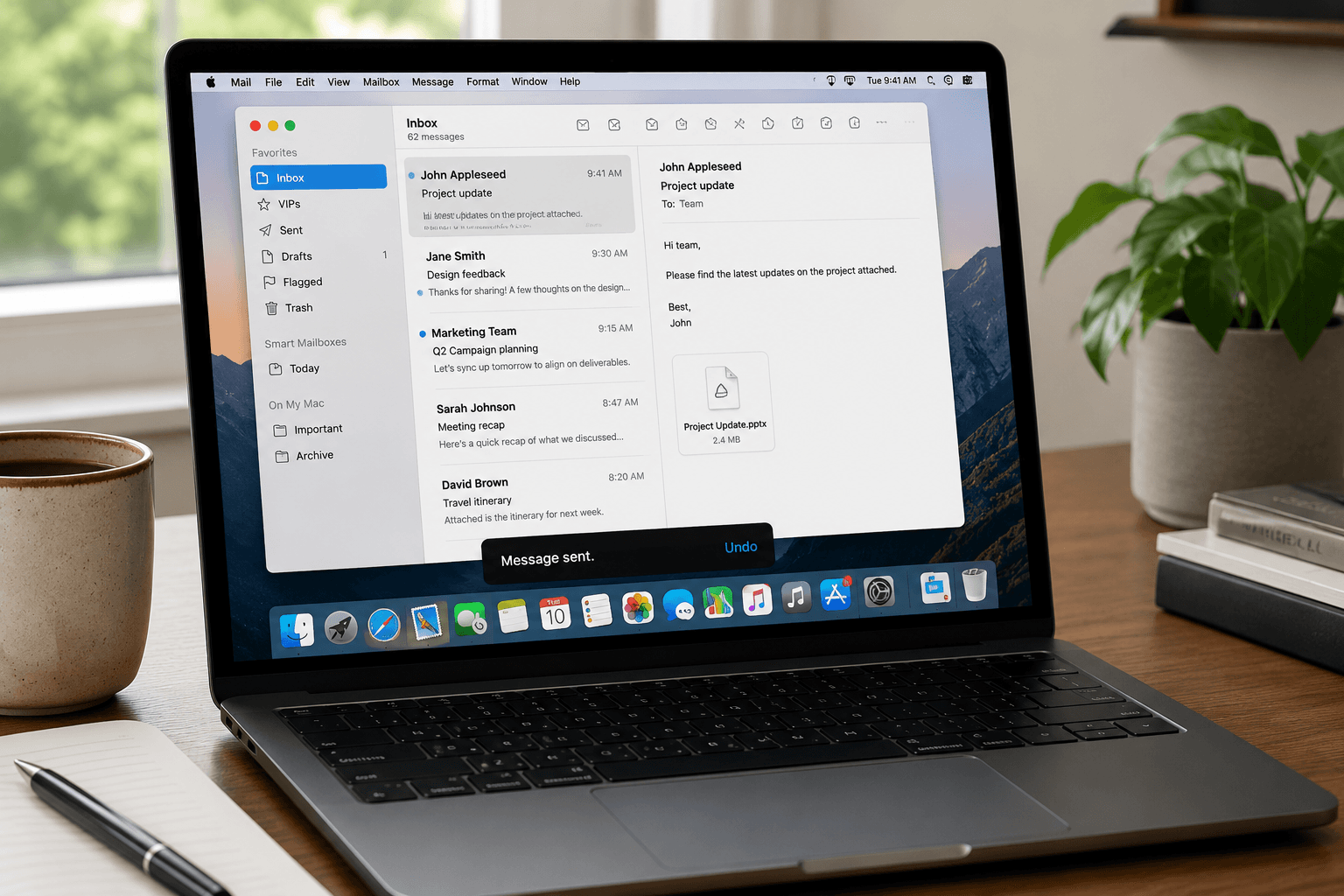
 You sent it. A second later, you spotted the typo, the wrong attachment, or the reply that was meant for someone else. The frantic question — can I recall this email? — has a more nuanced answer in Apple Mail than most people expect.
The short version: true recall (retrieving a message from the recipient's inbox) isn't possible in Apple Mail. But there are time-limited windows to undo a send before it actually goes out — and some practical damage-control steps when it's already gone.
Does Apple Mail have a recall feature?
No — not in the way Outlook's desktop client has historically offered. Outlook's recall works within Exchange/Microsoft 365 environments where both sender and recipient are on the same server. Apple Mail doesn't have server-side recall, and neither does iCloud Mail.
What Apple Mail does have is Undo Send — a time window after you tap Send during which the message hasn't actually been dispatched and can be cancelled. This was meaningfully improved in macOS Ventura (2022) and subsequent versions.
How Undo Send works in Apple Mail
In macOS Ventura and later, Apple Mail includes configurable Undo Send delay via Mail → Settings → Composing → Undo Send Delay. Options are 10 seconds, 20 seconds, 30 seconds, or Off.
When enabled, after clicking Send you'll see an "Undo Send" banner at the bottom of the Mail window for the duration of the delay. Click it within that window and the message is returned to Drafts — never sent.
To enable it:
1. Open Mail → Settings (or Preferences on older macOS).
2. Click the Composing tab.
3. Set Undo Send Delay to your preferred window (30 seconds is recommended).
This is a client-side delay — the message sits in Mail's outbox, not yet handed off to the sending server. Once the delay window expires, the message is gone.
What if the delay window has passed?
Once the message has been sent (delay expired or Undo Send was off), there's no technical mechanism to recall it. The email is in the recipient's inbox. Here's what you can actually do:
Send a follow-up immediately. For a wrong attachment, typo, or misinformation: send a corrected message right away. Subject: "Correction: [original subject]." Don't over-apologize — acknowledge the error briefly and provide the right information. Most professional recipients understand.
Call or message for truly sensitive situations. If you sent confidential information to the wrong person, email isn't the right remediation channel. A phone call or direct message is faster and more appropriate — you need to know whether they saw it and request deletion directly.
If using Gmail or Outlook through Apple Mail: You're still bound by Apple Mail's client behavior regardless of which account you're connected to. Gmail's "Undo Send" feature operates in the Gmail web interface and Gmail mobile app — not when sending through Apple Mail's SMTP connection.
What about "Recall message" on older macOS?
Older versions of Apple Mail (pre-Ventura) don't have a built-in Undo Send. In those versions, once you click Send, the message goes immediately to the server. Some users tried workarounds — taking the Mac offline instantly before mail synced — but this is unreliable and doesn't work if the message was already queued to an outgoing server.
Upgrading to macOS Ventura or later is the cleanest solution.
Recall in other email clients on Mac
If Apple Mail's limitations are frustrating, other clients on macOS handle this differently:
Gmail (web or mobile): Up to 30-second Undo Send via Settings → General → Undo Send.
Outlook (Mac desktop app): Recall is available for Exchange/Microsoft 365 accounts only — and only when the recipient is also on Exchange, hasn't opened the message, and hasn't moved it. It's unreliable but exists.
Outlook on the web: No recall; Undo Send delay only.
The better answer: pause before sending
The most effective "recall" is a habit: re-read before you send. Specifically, check the To field before anything else — recipient mistakes are harder to recover from than content errors. On any emotionally charged message, draft it, wait an hour, then send. A 30-second Undo Send helps; a five-minute review helps more.
Faraday works with Gmail and Outlook — both of which offer more send-control flexibility than Apple Mail's native IMAP/SMTP approach. If recall capability and robust send management matter to your workflow, an intelligent inbox that connects natively to Gmail or Outlook gives you more options — and a better experience beyond just sending. Organize first, send deliberately second.
