You check your phone. Three new emails. You open the first one — it needs a detailed response, but typing it on your phone feels painful. You star it for later. The second is a newsletter. You swipe to archive. The third is a meeting invite for tomorrow that requires checking your calendar, which means switching apps, which means losing context on the email. You lock your phone, slightly more stressed than when you unlocked it.
Sound familiar? You probably do this dozens of times a day. The average professional checks email on their phone over 50 times per day, and most of those checks are unproductive — they create awareness of work without the ability to actually do it. You end up knowing about more things you need to handle while being less able to handle any of them.
Mobile email, as most apps implement it, is broken. Here's how to fix it.
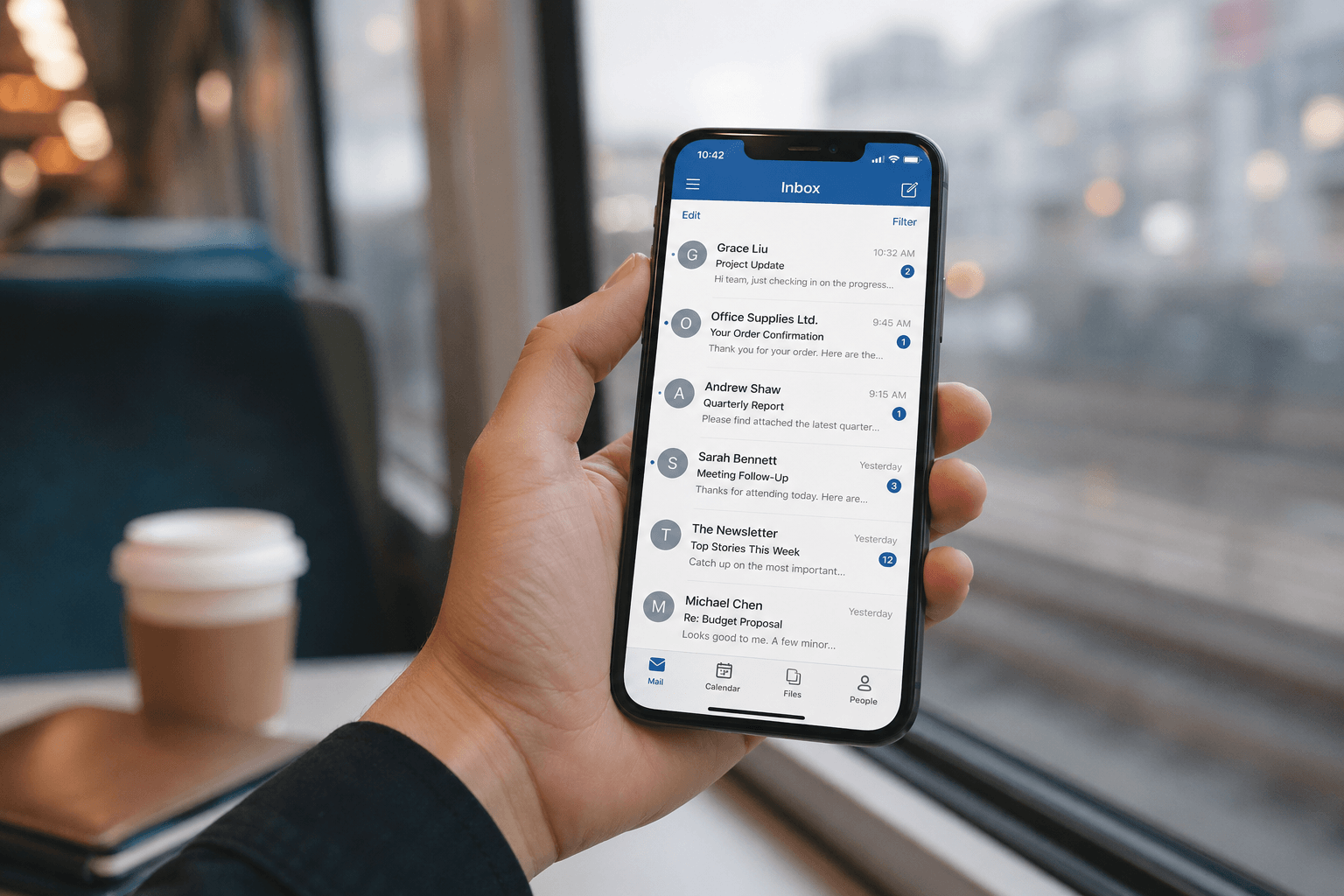
Why email on your phone feels worse than on desktop
The screen is too small for the task. Email — especially professional email — is a reading-heavy, context-heavy activity. Long threads, attachments, detailed requests, and multi-part conversations are designed for a large screen with a keyboard. Shrinking that experience to a 6-inch display with a thumb keyboard doesn't simplify it — it makes everything harder.
Notifications create urgency without capability. A push notification tells you "New email from [Boss]" and triggers an immediate stress response. But you're on the train, or in line at a coffee shop, or walking between meetings. You can see the email but can't respond properly. The notification created awareness without action — the worst combination for stress.
Most mobile email apps are shrunken desktop apps. Gmail's mobile app is essentially Gmail-in-a-smaller-window. Outlook mobile is Outlook-on-a-phone. The entire inbox paradigm — a scrolling list of messages sorted by time — was designed for desktop screens and mouse cursors. It was never rethought for mobile interaction patterns.
The triage vs. deep work distinction
The single most important concept for mobile email is understanding the difference between triage and deep work:
Triage is quick processing: scanning, archiving, flagging for later, sending one-line replies, acknowledging receipt. This works on mobile. It's fast, it's tactile, and it keeps your inbox from spiraling while you're away from your desk.
Deep work is thoughtful engagement: drafting detailed responses, reading long documents, making decisions that require context from other emails or systems. This does not belong on your phone.
The mistake most people make is trying to do deep work on mobile — typing a 200-word reply with their thumbs on a bumpy train, or trying to review an attached contract on a 6-inch screen. This is slow, error-prone, and frustrating. The solution: use your phone exclusively for triage, and save deep work for your computer.
Practical strategies for mobile email
1. Disable all-or-nothing notifications. Most email apps notify you for every incoming message with the same sound, badge, and priority. This trains you to ignore notifications entirely (notification fatigue) or to check compulsively (anxiety). Instead, turn off email notifications completely and check on your own schedule — 3-4 times a day is enough for most people.
2. Set specific check times. Instead of the ambient check-every-five-minutes habit, designate specific times: morning, after lunch, end of day. Batch processing is less stressful and more efficient than continuous monitoring. Between checks, trust that anything truly urgent will come via a phone call or text.
3. Master the two-second decision. For each email during triage, make one of four decisions immediately:
- Archive: No action needed. Get it out of the inbox.
- Quick reply: If it takes under 30 seconds, do it now.
- Star/flag: Needs a real response — mark it for desktop later.
- Delete: Spam, irrelevant, or duplicated information.
The goal is to touch each email once during mobile triage. Don't open, read, think "I'll deal with this later," and close. That's processing the email without making progress — it's wasted effort and deferred anxiety.
4. Use voice for longer replies. When you do need to send something substantial from your phone, voice-to-text is dramatically faster than thumb-typing. Most phones now handle dictation well enough for professional email. Dictate, review, send — three times faster than typing.
5. Separate work and personal accounts. If your phone has both work and personal email, the notifications blend. A client's urgent request arrives alongside a marketing email from a shoe store, and your brain can't distinguish between them until you look. Separate apps, or at minimum, disable notifications for one account during off-hours.
What a good mobile email experience should look like
The ideal mobile email app doesn't just shrink your inbox — it reimagines it for the constraints of mobile. It should:
Show you what matters immediately — personal messages and urgent requests at the top, noise organized separately. Not a flat chronological list where a critical reply sits below three newsletters.
Make triage frictionless — quick actions (archive, reply, flag) accessible without diving into menus or multiple taps.
Provide intelligent notifications — alerting you only for emails that genuinely need attention, staying silent for everything else.
Surface relevant information instantly — key details, dates, amounts, action items extracted from the email body so you can make a triage decision without reading the full message.
Faraday does exactly this. Every email is automatically classified by type, context, and relevance — so when you open it on your phone, what you see first is what actually matters. Personal messages surface above newsletters. Urgent requests surface above receipts. The relevant information — typically just 12% of any email — is immediately visible without scrolling through signatures, disclaimers, and quoted text.
Your phone should reduce email stress, not amplify it
Mobile email doesn't have to be a source of anxiety. With the right habits (triage-only, scheduled checks, voice replies) and the right tool (an inbox intelligent enough to show you what matters), your phone becomes a quick-scan dashboard rather than a stress-generating notification machine.
Check less. Triage faster. Save deep work for your desk. And make sure your email app is smart enough to earn your trust — so you can put your phone down knowing nothing important was missed.
