How to unsend an email?
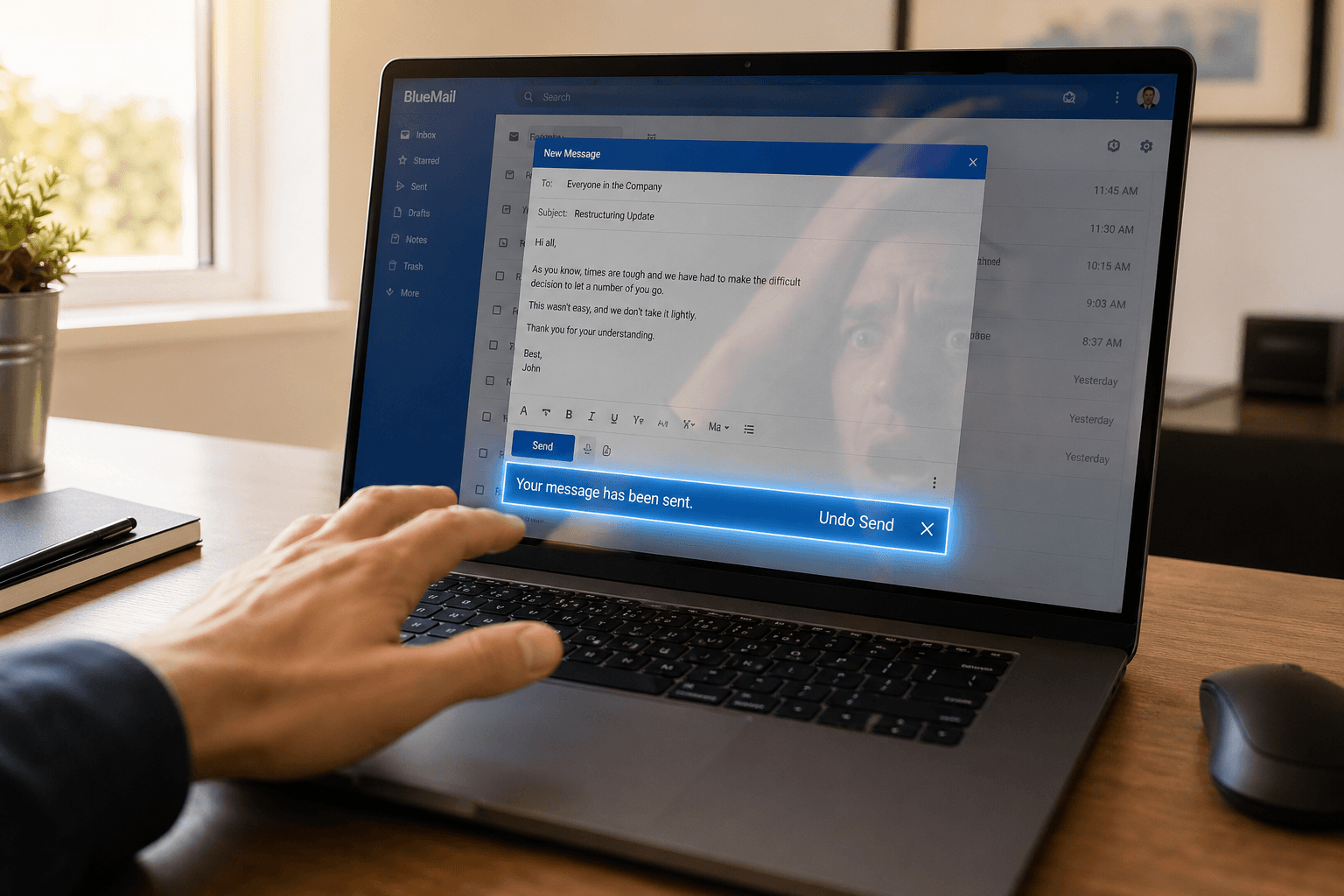 You hit send. And then — in the space of a single heartbeat — you see it. The typo in the subject line. The wrong attachment. The reply-all that should have been a reply. The email to your boss that was meant for your friend. The sinking feeling is universal, instant, and terrible.
Can you unsend an email? Sometimes. It depends on your email provider, how fast you act, and a bit of luck. Here's exactly what's possible — and what isn't — in Gmail, Outlook, and Apple Mail.
Gmail: Undo Send
Gmail's "Undo Send" feature is the simplest and most reliable option available — but it's not really an unsend. It's a delayed send. When you hit send, Gmail holds the email for a configurable window (5, 10, 20, or 30 seconds) before actually dispatching it. During that window, a small "Undo" banner appears at the bottom of the screen. Click it and the email returns to your drafts as if it never left.
How to set it up:
1. Open Gmail and click the gear icon, then "See all settings."
2. Under the "General" tab, find "Undo Send."
3. Set the cancellation period to 30 seconds (the maximum). There's no reason to choose less.
4. Scroll down and click "Save Changes."
The limitation: Once those 30 seconds pass, the email is gone. Gmail has no true recall mechanism. The email has been delivered to the recipient's server, and there is no way to pull it back. If you realize the mistake after the window closes — even by one second — your only option is a follow-up email.
Pro tip: Make the 30-second undo window a habit, not a safety net. Use those 30 seconds to re-read every email you send. Subject line, recipients, attachments, tone. It takes discipline, but it catches more mistakes than any technology can.
Outlook: Message Recall
Outlook offers a true "Recall" feature — but it comes with so many conditions that it fails more often than it succeeds.
How it works:
1. Open your "Sent Items" folder and double-click the message you want to recall.
2. Go to Message → Actions → Recall This Message.
3. Choose "Delete unread copies" or "Delete unread copies and replace with a new message."
4. Click OK.
When it works: Recall only succeeds if all of these conditions are met:
- Both you and the recipient use Microsoft Exchange or Microsoft 365 within the same organization.
- The recipient hasn't opened the email yet.
- The email is still in the recipient's Inbox (not moved to a folder by a rule).
- Outlook is running on the recipient's machine.
If even one condition fails, the recall fails — and worse, the recipient gets a notification that you tried to recall the message. This notification often draws more attention to the email than if you'd just left it alone. It's the Streisand effect of email.
The reality: In cross-organization communication (which is most professional email), Outlook recall is essentially useless. If you email someone at a different company, a Gmail user, or anyone not on your Exchange server, recall will fail 100% of the time. Don't rely on it.
Outlook's Undo Send (new): The newer Outlook for web and the new Outlook for Windows now include a Gmail-style undo send delay (up to 10 seconds). This is much more reliable than recall. Enable it in Settings → Mail → Compose and reply → Undo send.
Apple Mail: Undo Send
Since macOS Ventura and iOS 16, Apple Mail includes an "Undo Send" feature similar to Gmail's approach.
On Mac: After sending, an "Undo Send" button appears at the bottom of the sidebar for up to 30 seconds (configurable at 10, 20, or 30 seconds in Settings → Composing).
On iPhone/iPad: After sending, "Undo Send" appears at the bottom of the screen for the configured delay period. Tap it to pull the email back into drafts.
The limitation: Same as Gmail — once the delay window passes, the email is delivered and unrecoverable. Apple Mail has no server-side recall capability.
What to do when it's too late
Let's be honest — most of the time, you realize the mistake after the undo window has closed. Here's the damage control playbook:
For a wrong attachment or typo: Send a brief follow-up: "Apologies — please disregard the previous email. Here's the corrected version with the right attachment." Don't over-explain or over-apologize. Everyone has done this.
For a wrong recipient: This is more delicate. If the email contained sensitive information, contact the recipient directly (phone is better than email) and ask them to delete it. If it's a professional context, loop in your manager or compliance team. Document that you made the request.
For a reply-all disaster: Do not reply-all again to apologize. This just extends the thread for everyone. Send a private message to the people who matter — the person you were talking about, the person you meant to reply to — and address it directly. The rest of the recipients will forget about it faster than you think.
For an emotional email you regret: You can't unsend the words, but you can own them. A genuine, brief apology — "I wrote that in frustration and it doesn't reflect what I actually think. I'm sorry." — goes much further than pretending it didn't happen.
Prevention is better than recall
The best unsend feature is the one you never need. A few habits that dramatically reduce email regrets:
Set undo send to maximum everywhere. 30 seconds in Gmail, 30 seconds in Apple Mail, 10 seconds in new Outlook. Do it now.
Draft emotional emails in a notes app. Never compose an angry, frustrated, or emotionally charged email directly in your email client. Write it somewhere else, wait an hour (or a day), then decide if you still want to send it. Most of the time, you won't.
Check the "To" field last. Compose the email, add the attachment, proofread it — then add the recipient. This prevents accidental sends while you're still drafting.
Use an email client that gives you confidence. Part of the reason email mistakes feel so catastrophic is that most inboxes are chaotic — you're rushing, multitasking, and half-reading everything. When your inbox is organized and your emails are clearly presented, you're calmer, more deliberate, and less likely to fire off something you'll regret. Faraday automatically organizes and surfaces what matters in every email, reducing the frantic pace that causes mistakes in the first place.
The truth about unsending email is simple: you mostly can't. Gmail gives you 30 seconds. Apple Mail gives you 30 seconds. Outlook's recall is unreliable. After that, the email belongs to the recipient. The real solution isn't a better undo button — it's slowing down enough to not need one.