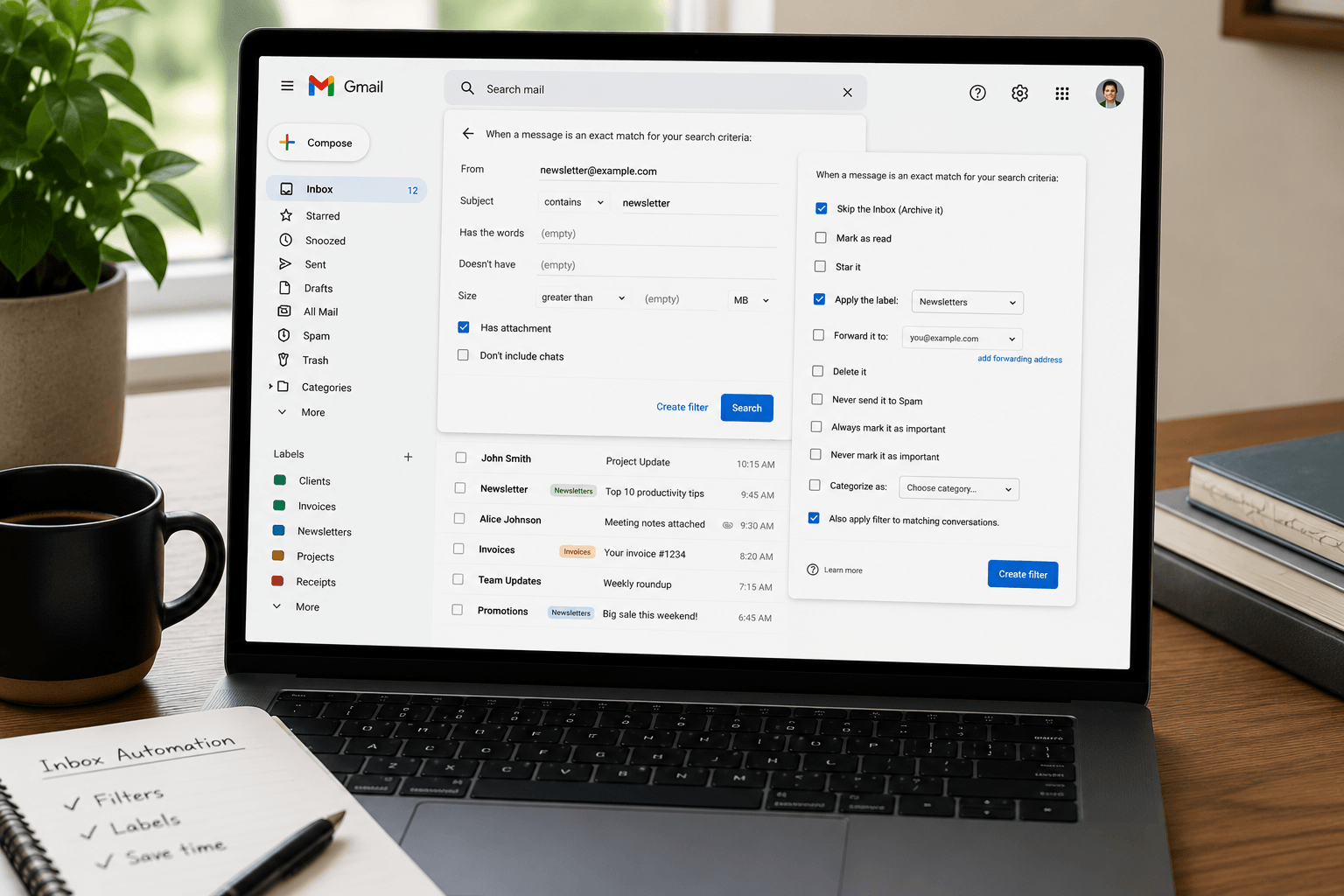
 Gmail filters and labels can turn a chaotic inbox into something manageable. The fastest setup is: use labels for long-term organization, filters for automatic routing, and search operators when you need to find something specific.
This guide covers the useful parts: how filters work, which labels are worth creating, and the Gmail search operators people actually search for in 2026, including in:sent, in:spam, has:attachment, larger:, filename:, and older_than:.
What Gmail filters actually do
A Gmail filter is a rule: when an incoming message matches a condition, Gmail performs an action automatically. Conditions include sender, recipient, subject, keywords, excluded words, attachment presence, size, and date-related searches. Actions include applying a label, skipping the inbox, marking as read, starring, forwarding, deleting, and never sending to spam.
Filters are best for messages you can describe predictably: newsletters, receipts, invoices, alerts, calendar notifications, domain-specific client mail, and automated reports.
How to create a Gmail filter
1. Open Gmail search options. Click the sliders icon in the search bar.
2. Enter the matching rule. Use sender, subject, keywords, or attachment rules.
3. Click Create filter.
4. Choose the action. Apply a label, skip inbox, mark as read, forward, delete, or star.
5. Apply to matching conversations if needed. This lets you clean up old mail, not just future mail.
Gmail labels vs folders
Gmail labels are not traditional folders. One message can have multiple labels, which is more flexible than moving it into exactly one folder. A receipt can be labeled Finance, Client A, and Tax 2026 at the same time.
Use a small number of durable labels. Too many labels become another manual filing system. Good labels include Clients, Receipts, Travel, Hiring, Legal, Newsletters, and Family. Avoid labels for every sender unless you have a real reason.
The Gmail search operators worth memorizing
in:sent searches your sent mail. Example: in:sent invoice Acme.
in:spam searches spam. Example: in:spam reset code.
has:attachment finds messages with attachments.
filename:pdf finds PDF attachments.
larger:10M finds messages larger than 10 MB.
size:5000000 finds messages larger than a size in bytes.
older_than:1y finds messages older than one year.
newer_than:30d finds messages from the last 30 days.
from:name@example.com searches a sender.
to:name@example.com searches a recipient.
subject:invoice searches subject lines.
-term excludes a term. Example: invoice -receipt.
OR searches either term. Example: from:alice OR from:bob.
Copy-paste searches for common problems
Find large attachments: has:attachment larger:10M
Find old attachments to clean up: older_than:2y has:attachment
Find sent proposals: in:sent proposal
Find missing verification codes: newer_than:7d code OR verification
Find likely newsletters: unsubscribe newer_than:30d
Find PDFs from a client: from:client@example.com filename:pdf
Search spam for a missed email: in:spam from:example.com
Filter recipes that actually help
Newsletters: Search for unsubscribe, then apply a Newsletters label and optionally skip the inbox.
Receipts: Search for terms like receipt OR invoice OR order confirmation, then apply Finance or Receipts.
Client domains: Use from:(@clientdomain.com) to label all mail from a company domain.
Calendar noise: Filter predictable calendar notification senders into a Calendar label, but do not mark them read if you rely on them.
Security alerts: Label them, star them, and keep them in the inbox. Do not auto-archive security messages unless you are certain.
When filters and labels stop being enough
Filters are rules, not understanding. They do not know whether an email from the same sender is a receipt, a support thread, a personal note, or an urgent deadline unless the message matches a pattern you wrote in advance.
That is where AI-native email clients differ. Faraday supports exact operator search, but also understands context: bookings, purchases, newsletters, people, tasks, and threads can be surfaced without manually maintaining a giant rule system.
