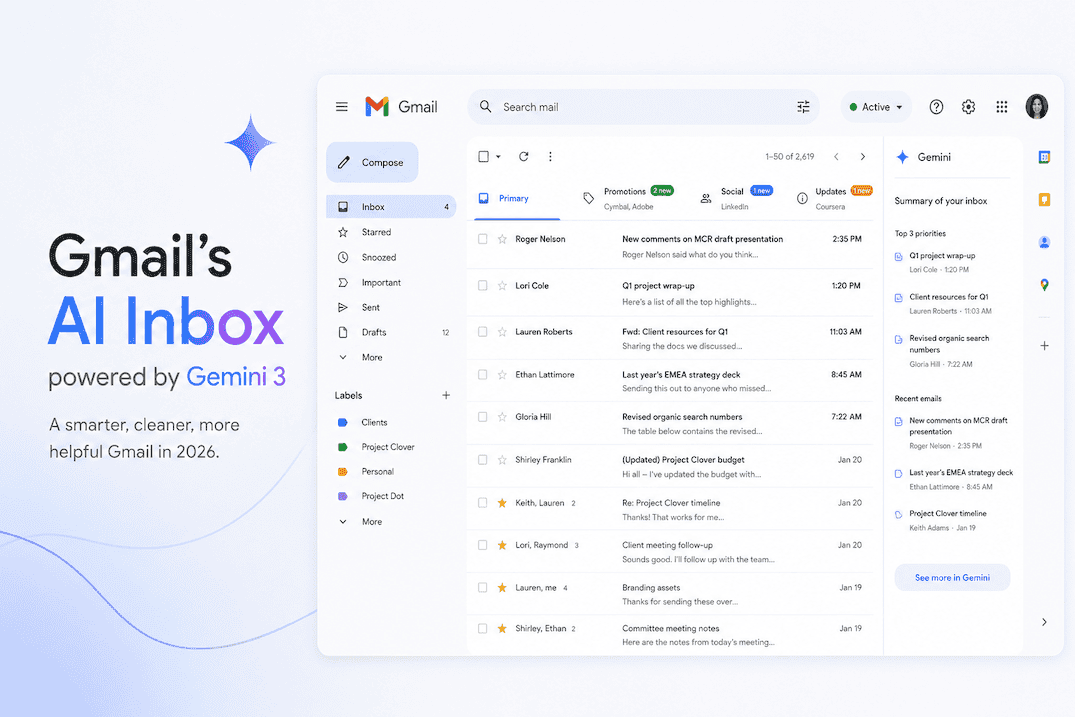
 Gmail’s AI Inbox — powered by Gemini 3 — rolled out to all US users in early 2026. It’s the largest change to Gmail since category tabs launched in 2013. If you’re wondering what it actually does, how to turn it on (or off), and whether it’s enough for a busy inbox — here’s the honest breakdown.
What is Gmail AI Inbox?
Gmail AI Inbox is Google’s umbrella name for a set of Gemini-powered features built directly into Gmail. Unlike third-party extensions or add-ons, these run natively inside Gmail — web, mobile, and the desktop app. The key features:
AI Overviews (thread summaries) — Long email threads get a summary at the top. Instead of scrolling through 14 replies to understand where a conversation stands, you get a paragraph that captures the key points, decisions, and open questions. Works well on genuinely long threads; adds little on short exchanges.
Intelligent prioritisation — Gmail reorders your inbox by predicted relevance, not just arrival time. Frequent contacts rank higher. Newsletters and automated notifications drop lower. The model considers sender history, your reply patterns, and message content to decide what you’ll likely want to see first.
Help Me Write — Gemini 3 drafts replies and new emails using thread context and your sent mail as style reference. You can prompt it (“write a polite decline”) or let it suggest a full draft. The drafts are noticeably better than earlier versions — more natural, more contextual. The caveat: it’s session-based, not learning. Your 100th draft won’t be better than your 10th.
Gemini Spark (actions) — The newest and most ambitious feature. Gemini can take actions on your behalf: schedule meetings from email threads, add calendar events, reply to routine messages. Currently in business preview with confirmation prompts before every action. It’s pointing toward the autonomous inbox era, but it’s not fully there yet.
How to enable Gmail AI features
Most Gmail AI features are on by default for US accounts. To check and configure:
1. Open Gmail → Settings (gear icon) → See all settings.
2. Go to the General tab.
3. Scroll to Smart features and personalization. This must be enabled for AI features to work.
4. Look for Gemini in Gmail — toggle individual features (summaries, suggested replies, Help Me Write) on or off.
5. On mobile: open the Gmail app → tap your profile picture → Gmail settings → General settings → Gemini.
Google Workspace users: Your admin controls whether Gemini features are enabled for your organisation. If you don’t see the options, check with your IT team — the admin console has per-feature toggles under Apps → Google Workspace → Gmail → Gemini settings.
Gemini Spark requires Google Workspace Business Standard or higher and is currently in staged rollout.
What works well
Thread summaries on long conversations. If you return from a day off to a 20-message thread, the AI overview genuinely saves 5–10 minutes of scrolling. It captures decisions, action items, and dissent accurately.
Draft quality for standard replies. Acknowledgements, scheduling confirmations, and straightforward responses are usually good enough to send with minor edits. For routine email, this saves real time.
Priority sorting for obvious signals. Emails from your manager or frequent collaborators surface above newsletters and notifications. The model handles clear-cut cases well.
Zero setup. Everything works out of the box. No configuration, no training period, no rules to write.
Where it falls short
Ambiguous priority. A cold email from a potential client your company has never contacted might get buried below a routine Slack notification. The model can’t know what’s important to your business without business context — and Gmail doesn’t have that context.
No learning over time. Help Me Write produces drafts at the same quality on day 1 and day 100. It reads your sent mail at the moment of the request but doesn’t build a persistent voice model. Your general register (formal vs casual) gets captured; your specific per-contact tone shifts, characteristic openers, and sign-off patterns don’t.
No follow-up tracking. You sent an important email three days ago and got no response. Gmail won’t surface that thread. There’s no native ghost detection — you need a third-party extension or your own memory.
Category tabs haven’t evolved. Primary, Social, Promotions, Updates — this architecture is from 2013. A billing email requiring action and a billing confirmation that doesn’t look the same to Gmail. An open question buried in paragraph four of a thread body won’t be extracted and surfaced.
Outlook accounts not supported. Gmail AI Inbox is Gmail-only. If you manage both Gmail and Outlook addresses, the AI features only apply to one half of your email.
Gmail AI Inbox vs Google Workspace add-ons
Google Workspace Marketplace has AI email extensions — Streak, Boomerang, Mailbutler — that fill some gaps (follow-up reminders, send-later, CRM integration). These work alongside Gmail AI Inbox but don’t integrate with Gemini’s model. You end up with two separate AI layers that don’t share context.
The result: more features, but not necessarily a smarter inbox. The extensions solve specific problems; they don’t change how the inbox itself thinks about your email.
When Gmail AI Inbox is enough
Gmail AI Inbox is genuinely good enough if:
• Your team is on Google Workspace and migration isn’t realistic.
• Email is one of several tools you use, not your primary professional surface.
• You want drafting help with zero configuration.
• Your inbox volume is moderate (under ~80 emails/day).
• You don’t manage multiple email providers.
In these cases, what Gemini delivers is real and sufficient. Don’t switch for the sake of switching.
When you need something purpose-built
The signs you’ve outgrown it: you still mentally triage an inbox that’s supposed to be smart. Drafts still need a full rewrite for important messages. Follow-ups are falling through the cracks. You manage Gmail and Outlook accounts and only half your mail gets AI treatment.
For a detailed side-by-side, see our Gmail AI Inbox vs real AI email clients comparison. Purpose-built AI email clients like Faraday were designed around these failure modes from the start — not retrofitted onto a 20-year-old architecture. The differences that matter in practice:
Voice learning that compounds. By week two, drafts sound like you wrote them — matching per-contact tone, your characteristic openers, your sign-off patterns. Not just “formal” vs “casual.”
Follow-up detection. Unanswered emails surface automatically before conversations go cold. No extensions needed.
Business-context categorisation. A billing email requiring your approval is separated from a payment confirmation. An open question directed at you, buried in paragraph three, gets extracted and surfaced.
Multi-provider support. Gmail and Outlook in one unified, intelligent inbox.
At $14/month for typical US subscribers, Faraday costs less than most Workspace tier upgrades while delivering meaningfully deeper inbox intelligence. If email is how you run your work, the gap between a capable platform feature and a purpose-built client becomes visible within a month.
