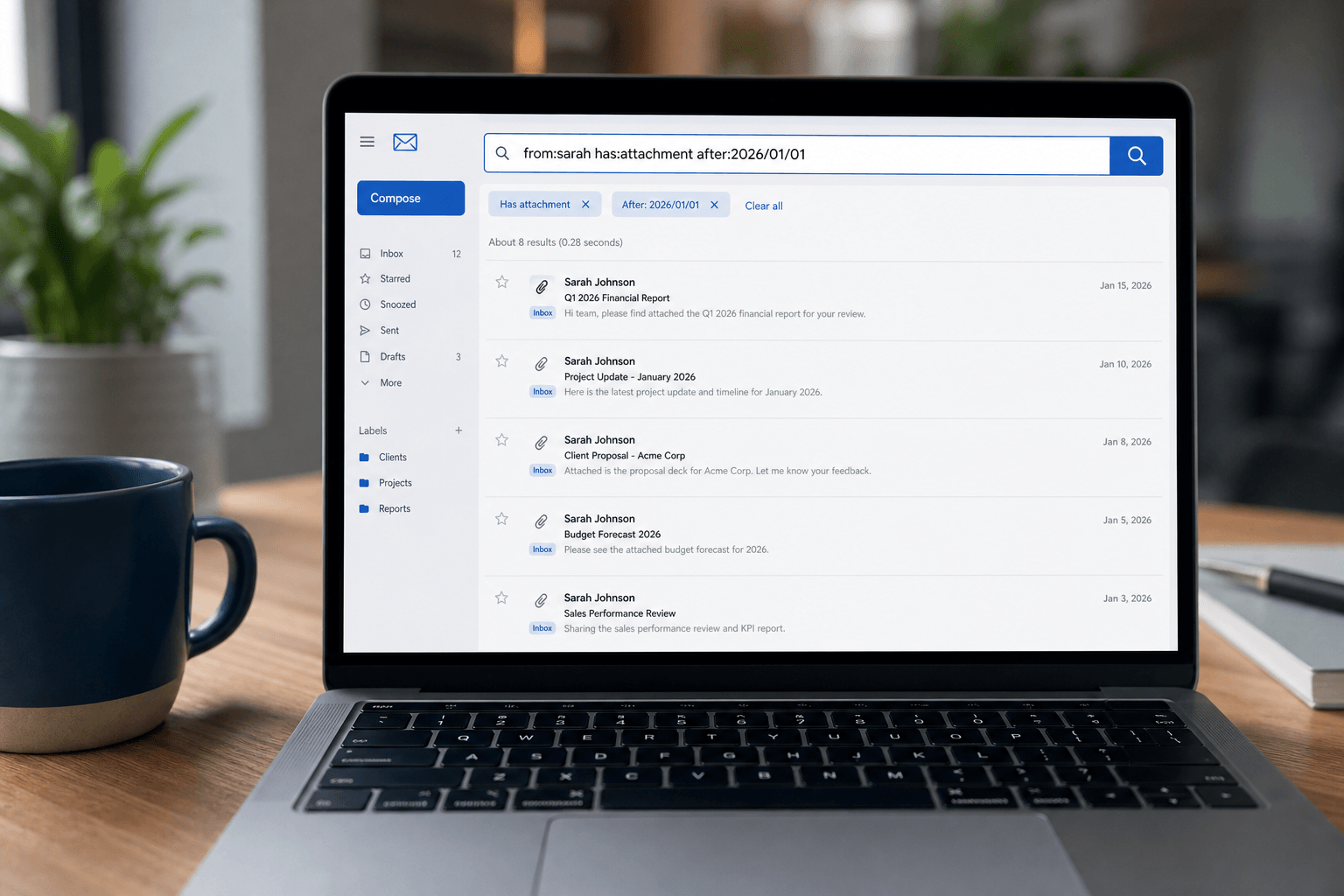
 You know the email exists. You remember the conversation. You're 90% sure it had an attachment. But searching "project proposal" returns 847 results and you're scrolling through pages of irrelevant matches.
The problem isn't your email client's search — it's that you're searching like a human, not like a power user. Email search operators are specific commands that narrow your search instantly. They work in Gmail, Outlook, and Faraday. Learn them once, find any email in seconds.
The basics: operators every email user should know
from: — Find emails from a specific sender.
Example: from:jane@acme.com
Example: from:jane (matches any sender named Jane)
to: — Find emails sent to a specific recipient.
Example: to:team@company.com
Works in Gmail, Outlook, and Faraday.
subject: — Search only in subject lines.
Example: subject:invoice
Example: subject:"Q2 report" (exact phrase in quotes)
has:attachment — Find only emails with attachments.
Example: from:john has:attachment (emails from John with attachments)
One of the most useful operators. Supported in Gmail, Outlook (use hasattachments:yes), and Faraday.
Date filtering: narrow by when
after: — Emails received after a date.
Example: after:2026/01/01
before: — Emails received before a date.
Example: before:2026/03/15
Combine them for a date range:
Example: after:2026/01/01 before:2026/03/31 (all emails from Q1 2026)
older_than: / newer_than: — Relative date filtering (Gmail).
Example: older_than:6m (older than 6 months)
Example: newer_than:2d (from the last 2 days)
Use d for days, m for months, y for years.
Advanced filtering
is:unread — Show only unread emails.
Example: is:unread from:boss@company.com
is:starred / is:flagged — Show starred (Gmail) or flagged (Outlook) emails.
is:important — Emails Gmail has marked as important.
label: — Filter by label (Gmail) or folder (Outlook/Faraday).
Example: label:work
Example: label:clients/acme (nested labels in Gmail)
in:sent — Search only sent mail.
Example: in:sent to:client@acme.com subject:proposal
in:trash / in:spam — Search trash or spam folders (these aren't included in normal searches).
Finding specific content
filename: — Find emails with specific attachment types or names.
Example: filename:pdf (any PDF attachment)
Example: filename:contract.pdf (specific file name)
Example: filename:xlsx (Excel spreadsheets)
size: — Find emails larger than a specific size.
Example: size:5mb (emails larger than 5 MB)
Example: larger:10M (Gmail alternative syntax)
Incredibly useful for freeing up storage — find and clean up large emails first.
"exact phrase" — Use quotes for exact phrase matching.
Example: "meeting agenda for Thursday"
Without quotes, search returns any email containing all those words in any order. With quotes, it finds the exact phrase.
Combining operators: the real power
Operators become truly powerful when combined. Here are real-world examples:
Find that contract from a client last quarter:
from:@acme.com filename:pdf subject:contract after:2026/01/01 before:2026/03/31
Find all unread emails with attachments from the past week:
is:unread has:attachment newer_than:7d
Find large emails eating your storage:
size:10mb older_than:1y
Find sent proposals that haven't been replied to:
in:sent subject:proposal after:2026/04/01
Find emails from a specific person about a specific topic:
from:sarah subject:"project alpha" has:attachment
Outlook-specific operators
Outlook uses slightly different syntax for some operators:
from: and to: work the same.
subject: works the same.
hasattachments:yes instead of has:attachment.
received>=2026/01/01 for date filtering instead of after:.
received<=2026/03/31 instead of before:.
attachmentnames: instead of filename:.
In Outlook's newer search, many Gmail-style operators also work, but the native AQS (Advanced Query Syntax) operators are more reliable.
Faraday: operators plus intelligence
Faraday supports the full range of search operators — from:, to:, after:, before:, has:attachment, and more — so every power-user trick you already know works exactly as expected. Your muscle memory transfers directly.
But Faraday also adds a layer of intelligence on top. When you search for "proposal from Sarah", Faraday doesn't just match the literal words — it understands that you're looking for a specific type of document from a specific person. When you search for "invoice last month", it resolves "last month" to the correct date range and surfaces invoices even if the subject line said "payment" or "billing."
You get the precision of operators when you want it, and the intelligence of contextual search when you don't want to think in operators. Both approaches, one search bar.
Combined with Faraday's automatic categorization — where every email is already classified by type, sender, and relevance — search becomes less about finding a needle in a haystack and more about confirming where you already know it is.
The best search is the one you don't have to perform. But when you do, knowing these operators turns a five-minute dig into a five-second find.