How to clean up your inbox?
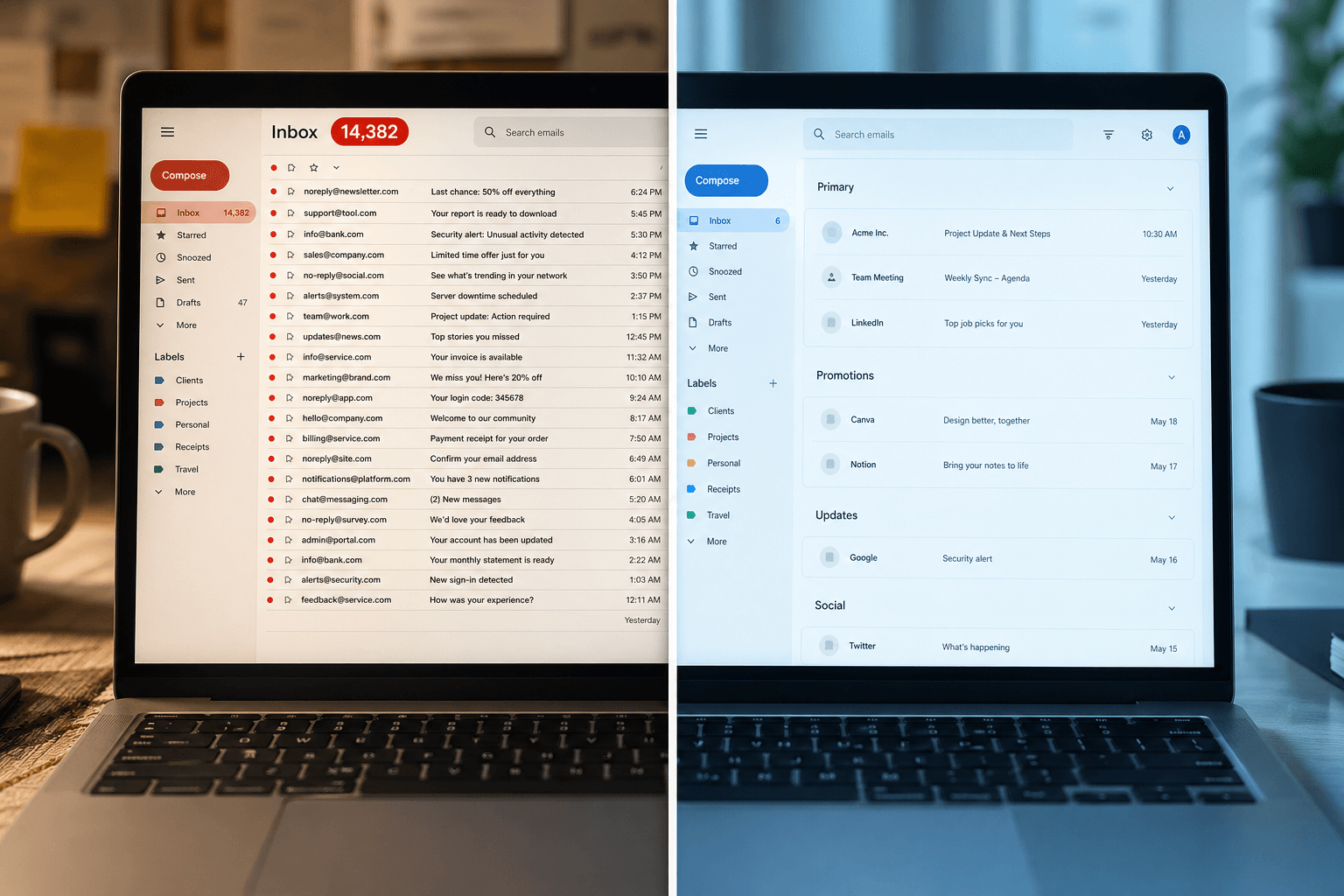 You open your inbox and there it is: 14,382 unread emails. Or maybe it's 3,000. Or 47,000. The number doesn't matter — what matters is the feeling. The weight of knowing that somewhere in that mountain of unread messages, there might be something important. A client email. An invoice. A job opportunity. Buried under years of newsletters you never read, notifications you never asked for, and promotional emails from every website that ever asked for your email address.
Cleaning up your inbox isn't just about aesthetics or achieving some mythical "inbox zero." It's about making email functional again — so when something important arrives, you actually see it. Here's how to do it, fast, regardless of which email service you use.
Step 1: Stop the bleeding
Before you touch a single old email, stop new junk from arriving. This is the most important step and the one most people skip. Cleaning up 10,000 emails is pointless if 200 new ones you don't want arrive tomorrow.
Unsubscribe aggressively. Open your inbox and scroll through the last week of emails. For every newsletter, promotional email, or notification you didn't read — open it and click "Unsubscribe" at the bottom. Don't skim it. Don't think "I might read this someday." If you haven't read it in the last month, you never will. Spend 15-20 minutes doing this and you'll cut incoming email volume by 30-50%.
Gmail users: Look for the "Unsubscribe" link that Gmail surfaces next to the sender name at the top of promotional emails. This is faster than scrolling to the bottom of each email.
Turn off unnecessary notifications. Every app wants to email you. LinkedIn activity, social media alerts, app updates, shipping notifications for items that already arrived. Go into the settings of your most active apps and disable email notifications for anything you don't genuinely need. Check the app instead of receiving emails about the app.
Step 2: The nuclear option (for the brave)
If you have thousands of unread emails that are months or years old, here's a truth: if it was important, someone would have followed up. Nothing in those 14,000 unread emails from 2023 is still waiting for your response.
Gmail: In the search bar, type is:unread before:2025/01/01 and hit search. Select all results (click the checkbox, then "Select all conversations that match this search"). Archive them all. Not delete — archive. They're still searchable if you ever need them, but they're out of your inbox.
Outlook: Use the "Filter" option to show only unread messages. Sort by date. Select all messages older than a reasonable cutoff (say, 6 months). Move them to a folder called "Old Inbox" or archive them.
Yahoo Mail: Click "Sort by: Unread" to surface all unread messages. Select all and move to a "Cleanup" folder. Yahoo's massive 1 TB storage means you never need to delete — just move them out of your primary inbox.
This single action will reduce your unread count by 80-90%. It feels terrifying. Do it anyway. You will not miss anything important.
Step 3: Tackle what's left by category
After the nuclear cleanup, you'll have a manageable number of recent emails. Handle them by type:
Newsletters and promotions: If you kept any subscriptions in Step 1, create a filter or rule to automatically label/folder them so they skip your inbox. In Gmail: Settings → Filters and Blocked Addresses → Create new filter. In Outlook: Rules → New rule. This keeps informational email accessible without cluttering your main view.
Notifications and receipts: Order confirmations, shipping updates, password resets, login alerts — these are useful briefly and then irrelevant. Archive or delete anything older than 30 days. Set up a filter to auto-label future notifications so they're easy to batch-process.
Actual correspondence: Emails from real humans who expect a response. These are the only emails that matter. Go through them, reply to what needs replying, and archive the rest.
Step 4: Free up storage
If you're hitting storage limits (common for Gmail's shared 15 GB), target the biggest offenders:
Find large emails: In Gmail, search size:10MB to find emails with large attachments. Download any attachments you need, then delete the emails. A single email with a presentation or video attachment can eat hundreds of megabytes.
Empty your trash and spam: Deleted emails sit in Trash for 30 days, still consuming storage. Go to Trash and click "Empty Trash now." Same for Spam.
Check Google Drive and Photos: Remember, Gmail's 15 GB is shared with Drive and Photos. You might have more space being consumed by old Drive files or original-quality photos than by email itself. Google One's storage manager (one.google.com/storage) shows you exactly what's using space.
Step 5: Set up systems to stay clean
A clean inbox without systems is a temporarily clean inbox. Here's how to keep it that way:
The 2-minute rule: If an email takes less than 2 minutes to handle, do it immediately. Reply, archive, delete. Don't leave it sitting there to be re-read and re-decided on later.
Process, don't check. "Checking" email means opening your inbox, reading a few things, getting anxious, and closing it. "Processing" means going through emails one at a time and making a decision about each: reply, archive, delegate, or schedule for later. Process your email 2-3 times a day at set times rather than checking constantly.
Filters are your infrastructure. Every time a recurring email type annoys you, create a filter for it. Newsletter → auto-label, skip inbox. Social notifications → auto-archive. Receipts → auto-label. Over time, your filters do the sorting that used to consume your attention.
Or: let intelligence do the cleanup
Everything above works. But it's also manual, time-consuming, and requires ongoing discipline. The reason inboxes get messy isn't that people are lazy — it's that email clients put the organizational burden entirely on you. You create the labels. You write the filters. You decide what's important. Every single time.
Faraday takes a fundamentally different approach. When you connect your Gmail or Outlook account, Faraday's AI automatically classifies every email — newsletters, receipts, personal messages, work correspondence, notifications — without you creating a single filter or label. Important emails surface first. Low-priority messages are organized but don't demand your attention.
It's the difference between cleaning your house every weekend and having a house that cleans itself. The inbox stays organized not because of your effort, but because of intelligence built into the system.
A clean inbox shouldn't require a weekend project and an article with five steps. It should be the default. And in 2026, with the right email client, it finally can be.